The below script will attach onchange event to a SharePoint lookup field (with items < 20 or items >= 20).
var ddlBranch;
// check if no. of items < 20 items
if($("select[title='Branch']").html() != null)
{
ddlBranch = $("select[title='Branch']")[0];
}
// check if no. of items >= 20
else if ($("input[title='Branch']").html() != null)
{
ddlBranch = $("input[title='Branch']");
// override the default HandleOptDblClick function in core.js
// added CallCustomFunction function
HandleOptDblClick = function()
{
var opt=event.srcElement;
var ctrl=document.getElementById(opt.ctrl);
SetCtrlFromOpt(ctrl, opt);
SetCtrlMatch(ctrl, opt);
opt.style.display="none";
// this checking is needed if you have other lookup fields in the form.
// this ensure that your custom function will be called only onchange of your specific lookup field
if($(ctrl).attr('title') == 'Branch')
CallCustomFunction();
}
}
// attach onchange event to ddlBranch
$(ddlBranch).change(function() {
CallCustomFunction();
});
// override the default FilterChoice function in core.js
// changed strHandler into "onclick" instead of "ondblclick"
// this will allow the user to just click once to select item instead of double click
function FilterChoice(opt, ctrl, strVal, filterVal)
{
var i;
var cOpt=0;
var bSelected=false;
var strHtml="";
var strId=opt.id;
var strName=opt.name;
var strMatch="";
var strMatchVal="";
var strOpts=ctrl.choices;
var rgopt=strOpts.split("|");
var x=AbsLeft(ctrl);
var y=AbsTop(ctrl)+ctrl.offsetHeight;
var strHidden=ctrl.optHid;
var iMac=rgopt.length - 1;
var iMatch=-1;
var unlimitedLength=false;
var strSelectedLower="";
if (opt !=null && opt.selectedIndex >=0)
{
bSelected=true;
strSelectedLower=opt.options[opt.selectedIndex].innerText;
}
for (i=0; i < rgopt.length; i=i+2)
{
var strOpt=rgopt[i];
while (i < iMac - 1 && rgopt[i+1].length==0)
{
strOpt=strOpt+"|";
i++;
if (i < iMac - 1)
{
strOpt=strOpt+rgopt[i+1];
}
i++;
}
var strValue=rgopt[i+1];
var strLowerOpt=strOpt.toLocaleLowerCase();
var strLowerVal=strVal.toLocaleLowerCase();
if (filterVal.length !=0)
bSelected=true;
if (strLowerOpt.indexOf(strLowerVal)==0)
{
var strLowerFilterVal=filterVal.toLocaleLowerCase();
if ((strLowerFilterVal.length !=0) && (strLowerOpt.indexOf(strLowerFilterVal)==0) && (strMatch.length==0))
bSelected=false;
if (strLowerOpt.length > 20)
{
unlimitedLength=true;
}
if (!bSelected || strLowerOpt==strSelectedLower)
{
strHtml+="<option selected value=\""+strValue+"\">"+STSHtmlEncode(strOpt)+"</option>";
bSelected=true;
strMatch=strOpt;
strMatchVal=strValue;
iMatch=i;
}
else
{
strHtml+="<option value=\""+strValue+"\">"+STSHtmlEncode(strOpt)+"</option>";
}
cOpt++;
}
}
var strHandler=" onclick=\"HandleOptDblClick()\" onkeydown=\"HandleOptKeyDown()\"";
var strOptHtml="";
if (unlimitedLength)
{
strOptHtml="<select tabIndex=\"-1\" ctrl=\""+ctrl.id+"\" name=\""+strName+"\" id=\""+strId+"\""+strHandler;
}
else
{
strOptHtml="<select class=\"ms-lookuptypeindropdown\" tabIndex=\"-1\" ctrl=\""+ctrl.id+"\" name=\""+strName+"\" id=\""+strId+"\""+strHandler;
}
if (cOpt==0)
{
strOptHtml+=" style=\"display:none;position:absolute;z-index:2;left:"+x+ "px;top:"+y+ "px\" onfocusout=\"OptLoseFocus(this)\"></select>";
}
else
{
strOptHtml+=" style=\"position:absolute;z-index:2;left:"+x+ "px;top:"+y+ "px\""+ " size=\""+(cOpt <=8 ? cOpt : 8)+"\""+ (cOpt==1 ? "multiple=\"true\"" : "")+ " onfocusout=\"OptLoseFocus(this)\">"+ strHtml+ "</select>";
}
opt.outerHTML=strOptHtml;
var hid=document.getElementById(strHidden);
if (iMatch !=0 || rgopt[1] !="0" )
hid.value=strMatchVal;
else
hid.value="0";
if (iMatch !=0 || rgopt[1] !="0" )
return strMatch;
else return "";
}
Showing posts with label jQuery. Show all posts
Showing posts with label jQuery. Show all posts
Tuesday, 7 January 2014

Monday, 28 October 2013
How To Highlight Current Page Link on Left Navigation Menu
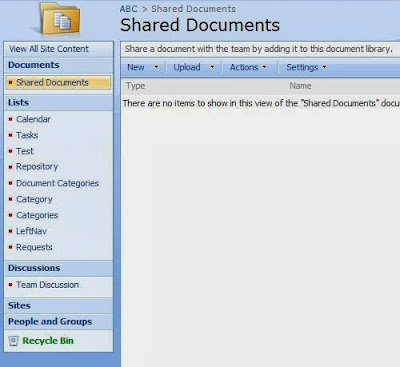
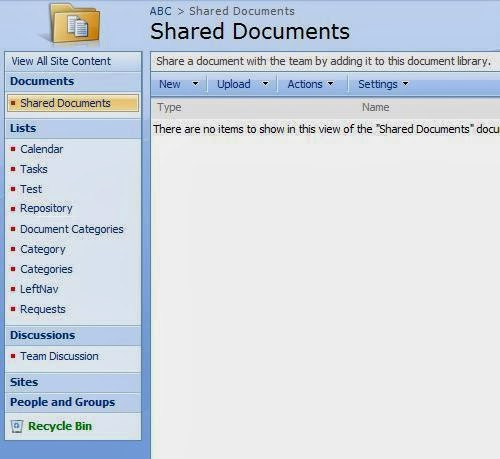
Last time, I encountered an issue in SharePoint site where the current page link on the left navigation menu is not being highlighted. And as a workaround, I just created a script using jQuery based on the html structure and css class of the left navigation menu.
Here is the sample script:
Basically, in order to explore and understand the html structure of the page, I have used an IE Developer Toolbar as shown below.

After adding the script in the master page, the current page link will now be highlighted.
Here is the sample script:
<script type="text/javascript" src="/_layouts/1033/jquery.js"></script>
<script type="text/javascript">
$(document).ready(function() {
var oUrl = window.location.href;
$("table .ms-navitem td a").each(function() {
var ohref = $(this).attr("href");
if(oUrl.indexOf(ohref) != -1)
{
var oClass = $(this).parent().parent().parent().parent().attr("class") + " ms-selectednav";
$(this).parent().parent().parent().parent().attr("class", oClass);
}
});
});
</script>
Basically, in order to explore and understand the html structure of the page, I have used an IE Developer Toolbar as shown below.

After adding the script in the master page, the current page link will now be highlighted.
Saturday, 5 October 2013
Get User Profile Picture URL Using JQuery
I encountered an issue while working on a discussion board in SharePoint 2007. The issue is the user's profile picture is not displaying in the flat view of the discussion board even though there is a picture associated with the user profile. Instead the picture from this url "_layouts/images/person.gif" is displaying. So in order to fix this issue, I just used jQuery.
Here is the sample script on how to get the user profile picture url through jQuery:
function spjs_QueryPicURL(itm){
var pic=null;
var query = "<Query><Where><Eq><FieldRef Name='Title' /><Value Type='Text'>"+itm+"</Value></Eq></Where></Query>";
$().SPServices({
operation: "GetListItems",
async: false,
listName: "6ccdab10-1068-4d14-8f72-2a55f02938da",
CAMLQuery: query,
CAMLViewFields: "<ViewFields><FieldRef Name='Picture' /></ViewFields>",
completefunc: function (xData, Status) {
$(xData.responseXML).find("[nodeName='z:row']").each(function() {
pic = $(this).attr("ows_Picture");
});
}
});
if(pic == 'undefined')
pic=null;
return pic;
}
**** Note:
listName is the list ID of User Information List
****************
Subscribe to:
Posts (Atom)